
Form Abandonment Analysis: Find Where You’re Losing Leads and Fix It

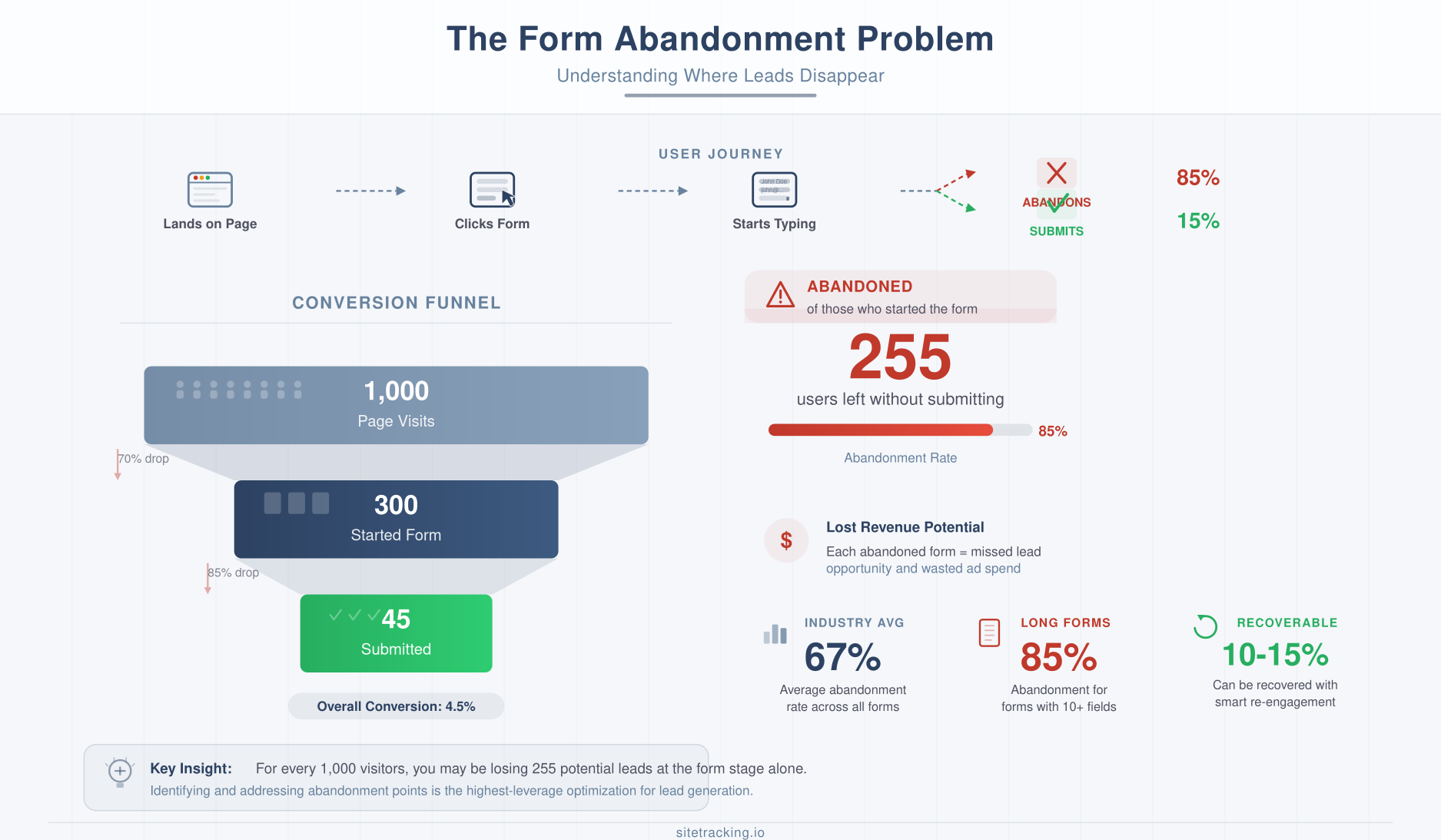
Your landing page gets 1,000 visits a month. 300 people click into your form. But only 45 actually submit it. That means 255 potential leads — 85% of everyone who started — quietly walked away. Where did they go? More importantly, why?
This is form abandonment, and it’s one of the most expensive problems in digital marketing. Every abandoned form represents someone who was interested enough to start but not confident enough to finish. The good news: the data to diagnose and fix this problem is already available in your analytics. You just need to know where to look.
In this guide, I’ll walk you through how to track form abandonment, identify the specific fields where people drop off, and apply fixes that recover lost conversions. Whether you’re working with lead gen forms, checkout flows, or registration pages, this framework applies.
What is form abandonment and why it matters
Form abandonment happens when a user begins filling out a form but leaves the page before submitting it. It’s different from page bounce — these aren’t people who glanced at your page and left. They actively engaged with your form. They typed in fields. Then something stopped them.
The average form abandonment rate across industries sits around 67%, according to multiple studies. For longer forms — like insurance quotes, loan applications, or multi-step registrations — rates can exceed 80%. That’s a massive volume of lost conversions hiding in plain sight.
Why does this matter more than other metrics? Because these users are high-intent. Someone who starts filling out a form is far more likely to convert than a casual browser. Recovering even 10-15% of form abandonments can have a bigger impact on revenue than doubling your traffic. This is why form abandonment analysis belongs in any serious conversion tracking setup.
How to track form abandonment in GA4
GA4 doesn’t track form field interactions out of the box. You need to set up custom events that fire when users interact with specific form fields. Here’s the approach I use.
Set up field-level tracking with GTM
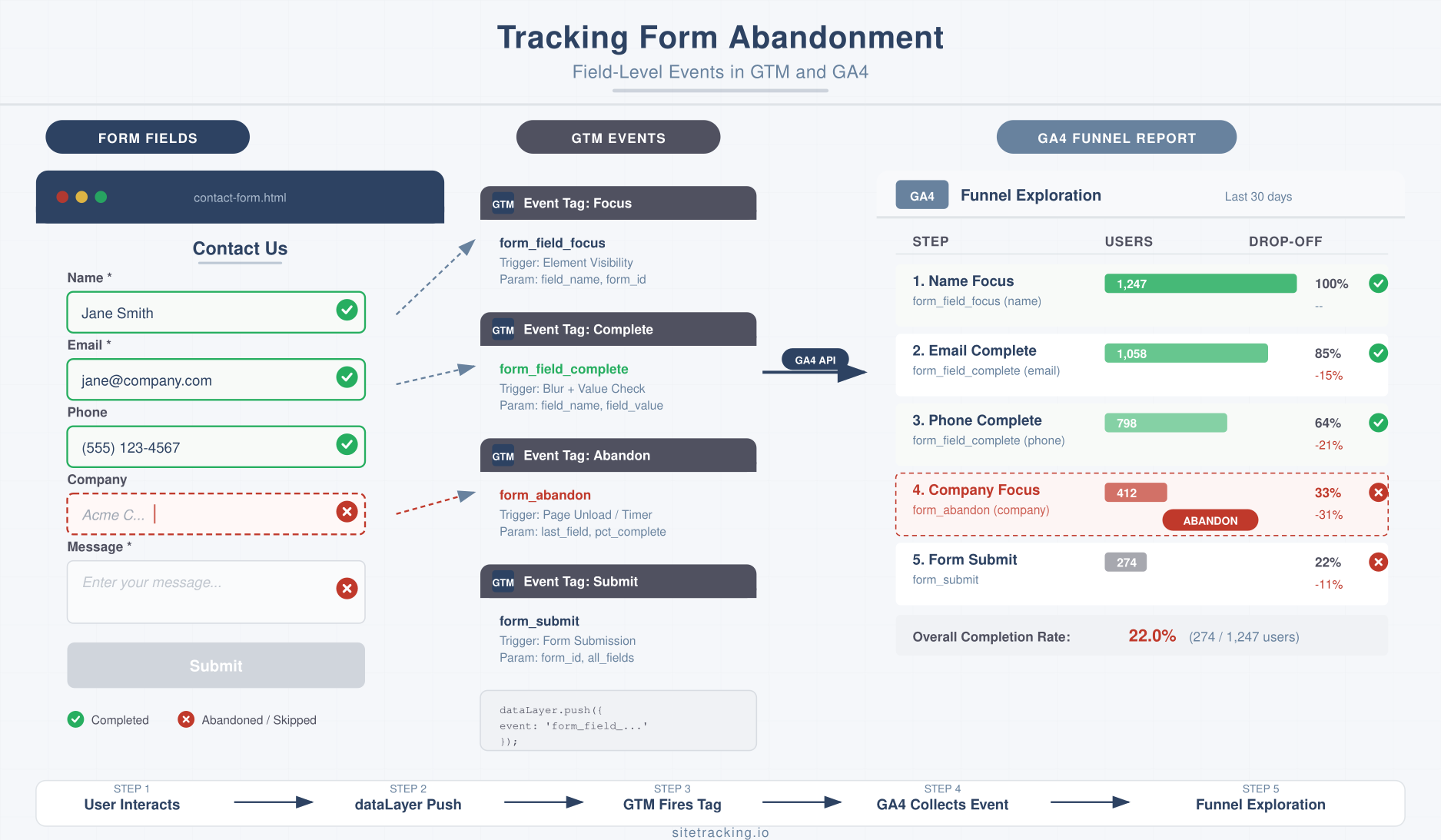
Google Tag Manager is the most practical way to track form field interactions without modifying your site’s codebase. You’ll create triggers that fire when users focus on (click into) each form field, and when they blur (click away from) each field. This gives you two data points per field: who started it and who completed it.
Create a custom event for each significant field interaction. Following solid GA4 event naming conventions, use a structure like:
form_field_focus— Fires when a user clicks into a field. Include parameters forfield_name,form_id, andfield_position.form_field_complete— Fires when a user fills in a field and moves to the next one. Same parameters.form_abandon— Fires when a user who interacted with at least one field leaves the page without submitting. Includelast_field_completedandfields_completed_countas parameters.
Create a form funnel in GA4 Explorations
Once your events are flowing, build a funnel exploration in GA4. Set each form field as a step in the funnel, ordered from first to last. This visualization shows you exactly where users drop out of your form. You’ll typically see a pattern: a steep drop at one or two specific fields. Those are your problem areas.
Add segments to compare behavior across device types, traffic sources, and user demographics. Mobile users often abandon at different fields than desktop users, and UTM-tagged traffic sources can reveal which campaigns send users who struggle with your forms.
The most common reasons people abandon forms
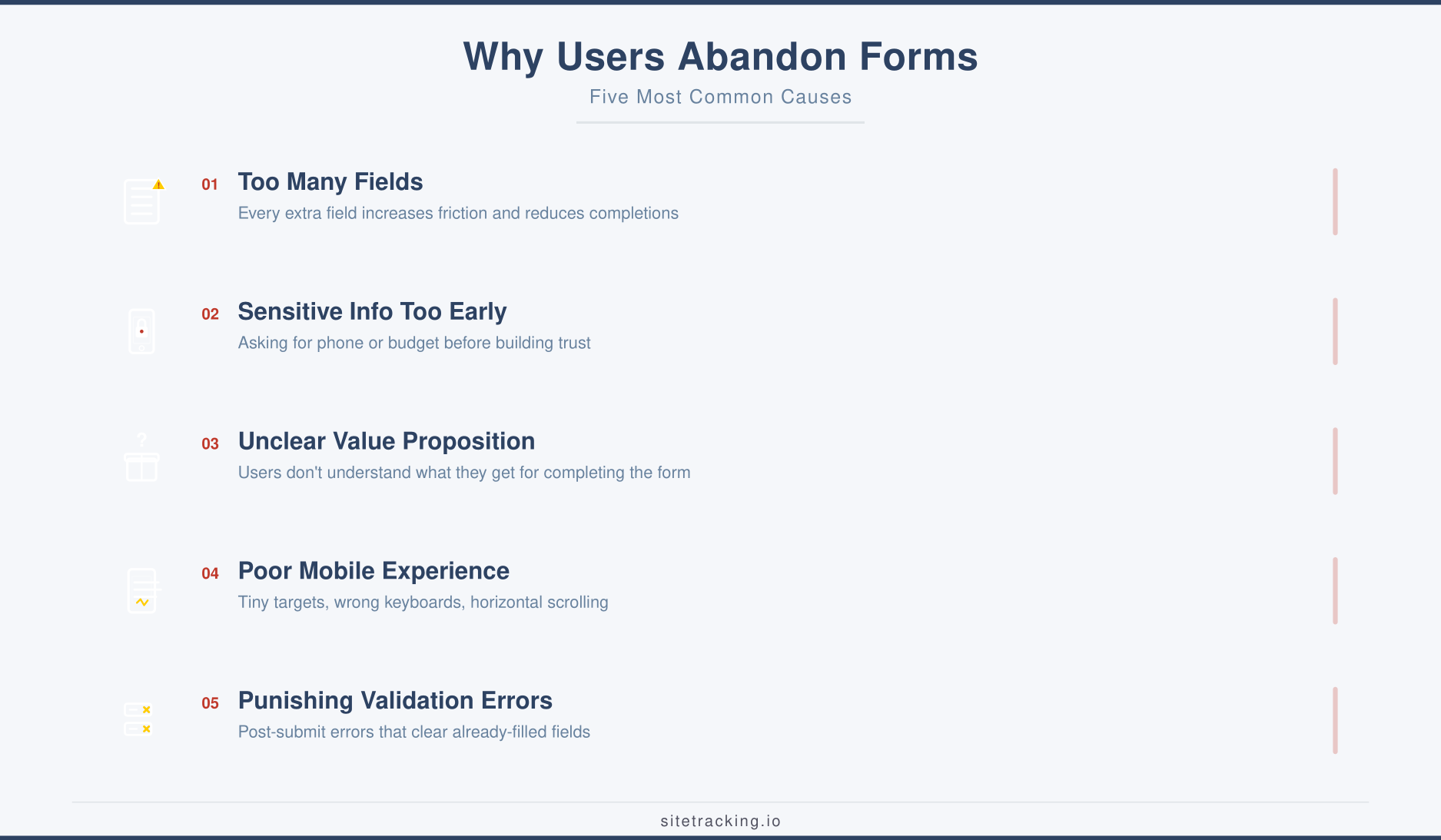
Form abandonment isn’t random. In my experience, it comes down to a handful of recurring issues. Understanding these helps you prioritize fixes.
Too many fields
Every additional field increases friction. Research consistently shows that reducing form fields increases completion rates. A form with 3 fields converts roughly 25% better than one with 6 fields. Ask yourself for each field: “Do we absolutely need this information at this stage?” If the answer is no, remove it or move it to a later step.
Sensitive information too early
Asking for a phone number, budget, or company revenue in the first few fields creates immediate resistance. Users haven’t built enough trust yet. If you need sensitive data, place those fields later in the form — after users have already invested time filling out easier fields. The sunk-cost effect works in your favor.
Unclear value proposition
If users don’t understand what they get in return for completing the form, they’ll leave. This is especially true for lead gen forms where the “submit” button says something vague like “Submit” instead of “Get Your Free Report” or “Start Your Trial.” The value exchange should be obvious at every point in the form.
Poor mobile experience
Forms that work fine on desktop can be painful on mobile. Tiny tap targets, fields that require horizontal scrolling, dropdowns with 50 options, and keyboards that don’t match the input type (showing a full keyboard for a phone number field) all drive mobile abandonment. Check your Core Web Vitals too — slow-loading forms frustrate users before they even start.
Validation errors that punish users
Nothing kills form completion faster than submitting a form and getting a wall of red error messages — especially if the form clears fields the user already filled in. Inline validation (showing errors as users complete each field) reduces abandonment significantly compared to post-submission validation.
How to fix form abandonment: a step-by-step approach
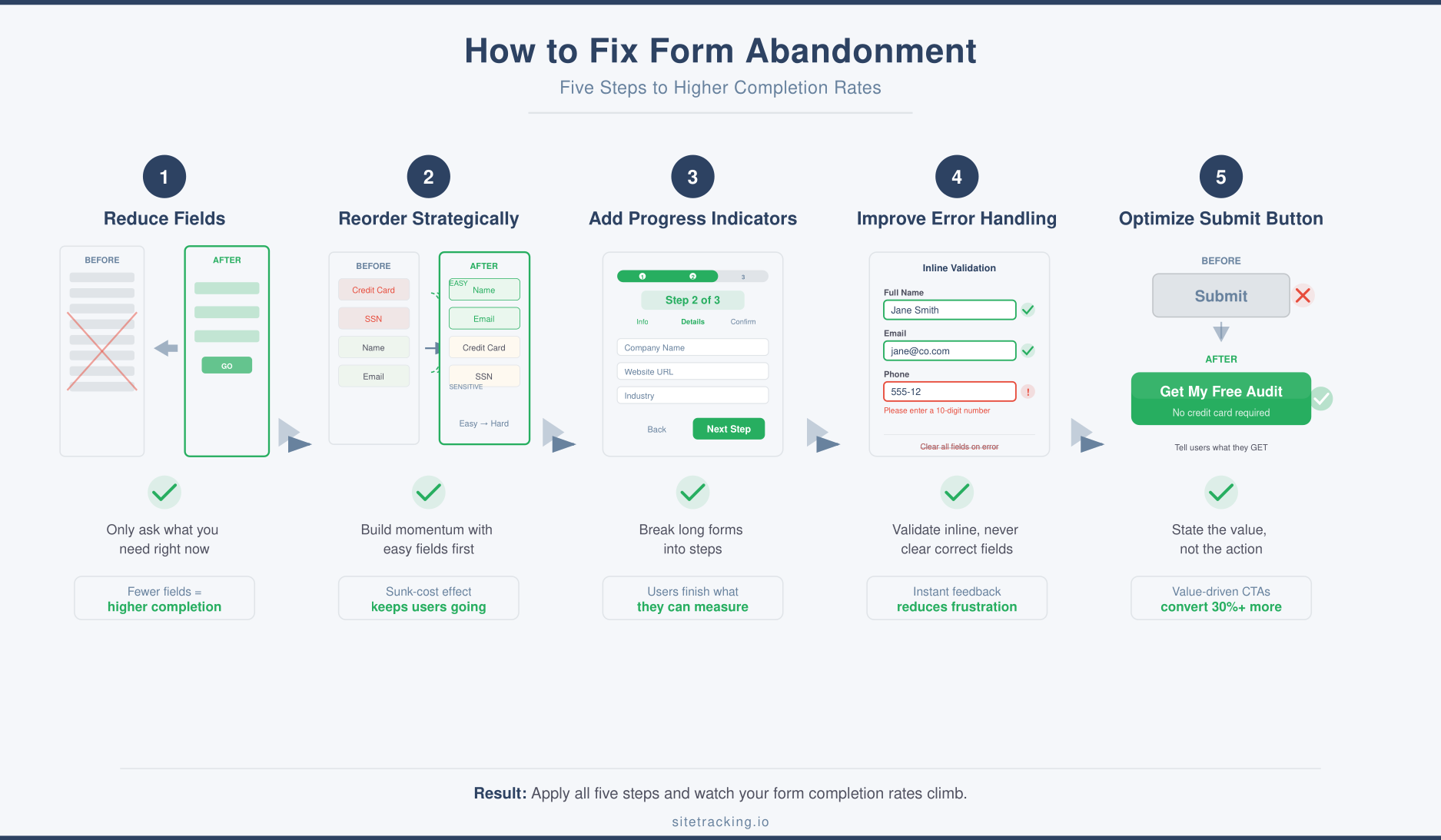
Once you’ve identified where and why users abandon your forms, apply these fixes in priority order.
Step 1: Reduce field count ruthlessly
Audit every field in your form. For each one, ask: “Can we get this information later?” Name and email are usually sufficient for initial lead capture. Company name, phone number, job title, and company size can all be collected through progressive profiling in follow-up interactions.
Step 2: Reorder fields strategically
Put your easiest, least sensitive fields first. Name and email should come before phone number. Generic questions before specific ones. The goal is to build momentum — once someone has filled out three fields, they’re psychologically invested in completing the form.
Step 3: Add progress indicators for multi-step forms
If your form has more than 5 fields, consider breaking it into steps. Show a progress bar or “Step 2 of 3” indicator. This reduces perceived complexity and gives users a sense of progress. Multi-step forms consistently outperform single long forms for complex data collection.
Step 4: Improve error handling
Switch to inline validation. Show green checkmarks for correctly completed fields. Display specific, helpful error messages (“Please enter a valid email address” instead of “Invalid input”). Never clear fields that were filled correctly when an error occurs elsewhere.
Step 5: Optimize the submit button
Replace generic “Submit” buttons with specific value statements. “Get My Free Audit” converts better than “Submit.” “Start My Trial” converts better than “Sign Up.” The button text should remind users what they’re getting, not what they’re giving.
Recovering abandoned form users
Even after optimizing your form, some users will still abandon. Here’s how to bring them back.
Exit-intent popups
When a user moves their cursor toward the browser’s close button (desktop) or starts scrolling up rapidly (mobile), trigger a popup that addresses their likely objection. “Not ready to commit? Save your progress and we’ll email you a link to continue.” This works particularly well for longer forms.
Partial submission capture
If your form captures email in an early field, you can save partial submissions and trigger follow-up emails. “We noticed you didn’t finish your application. Pick up where you left off.” This technique requires careful implementation and clear privacy disclosures, but it can recover 5-10% of abandonments.
Retargeting campaigns
Build an audience segment of users who triggered your form_field_focus event but not your conversion event. Use this segment for retargeting ads that address common form objections or offer an alternative conversion path — like a phone call or live chat instead of the form.
Measuring improvement
Track these metrics before and after implementing changes to quantify your results.
- Form completion rate. Total submissions divided by total form interactions. This is your primary metric. Benchmark against your starting point, not industry averages.
- Field-level drop-off rate. The percentage of users who abandon at each specific field. After fixes, your problem fields should show lower drop-off.
- Time to completion. How long it takes users to complete the form. Faster completion usually correlates with higher completion rates.
- Mobile vs. desktop completion rates. Compare rates across devices. Mobile improvements often lag desktop, so track them separately.
- Recovery rate. For exit-intent and email follow-up campaigns, track what percentage of abandoners return and complete the form.
Connect these metrics to downstream revenue using your attribution model. A 10% improvement in form completion rate should translate directly to more leads and revenue — if it doesn’t, check whether the additional completions are qualified leads or just noise.
Frequently Asked Questions
What’s a good form completion rate?
It depends on form type. Simple contact forms (2-3 fields) should see 40-60% completion. Lead gen forms (5-7 fields) typically range from 20-40%. Multi-step applications or registrations might see 10-25%. Don’t chase an absolute number — focus on improving your own rate over time.
Should I remove optional fields?
If a field is optional, question whether you need it at all. Optional fields still add visual complexity and increase perceived effort. If fewer than 20% of users fill in an optional field, remove it entirely and collect that data through other means.
How does form abandonment tracking affect page speed?
Properly implemented GTM-based tracking adds minimal overhead — typically under 50ms of processing time. The events fire on user interaction, not on page load, so they don’t affect initial page rendering. However, loading too many GTM tags overall can slow your page, so keep your container lean.
Key takeaways
- Form abandonment is expensive — 67% of users who start forms never finish them. These are high-intent users you’re losing.
- Track at the field level — aggregate form completion rates hide where the real problems are. Use field-level events to find your drop-off points.
- Reduce fields ruthlessly — every field you remove increases completion rates. Collect non-essential data through progressive profiling.
- Order fields strategically — easy fields first, sensitive fields last. Build momentum before asking for commitment.
- Recover abandonments with exit-intent popups, partial submission capture, and retargeting campaigns.
- Measure before and after every change. Connect form metrics to downstream revenue to prove ROI.
Form abandonment analysis isn’t a one-time project. As you add new forms, change your offerings, or shift traffic sources, abandonment patterns will change too. Build field-level tracking into every form from day one, review the data monthly, and treat your forms as conversion assets that deserve the same optimization attention as your landing pages. The revenue you recover will justify the effort many times over.