Landing Page Conversion Tracking: How to Measure What Actually Drives Signups
You launched a landing page. Traffic is coming in. But here’s the thing — how do you know what’s actually making people sign up? Is it the headline? The form placement? That testimonial section you spent hours on?
Without proper landing page conversion tracking, you’re essentially guessing. And guessing doesn’t scale.
In this guide, I’ll walk you through exactly how to set up conversion tracking on your landing pages — step by step, without needing a developer on speed dial. We’ll cover what to measure, how to measure it, and how to use that data to actually improve your results.
Why most landing page tracking setups miss the point
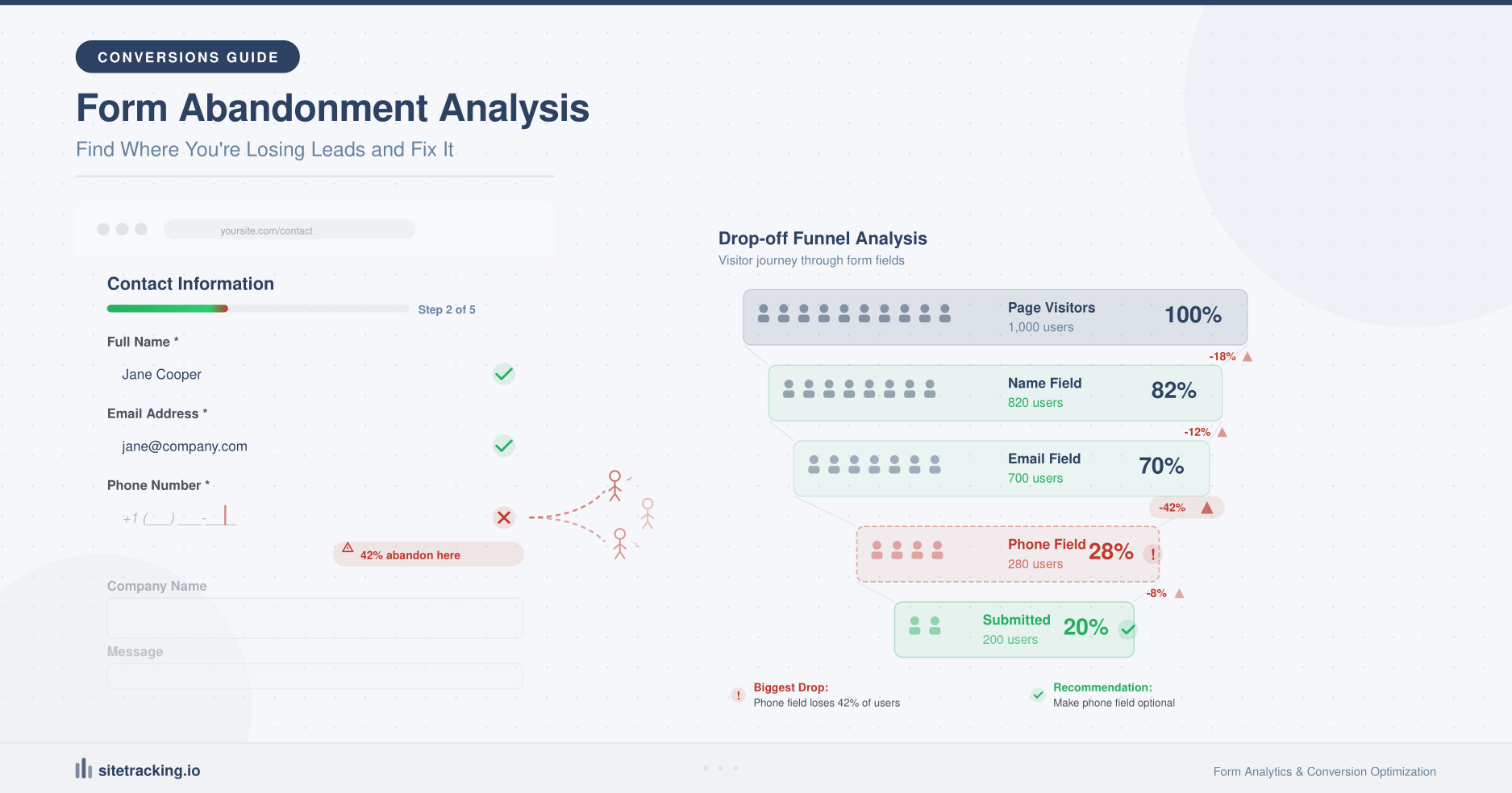
Most teams set up one conversion event — usually a form submission — and call it a day. That tells you how many people converted. However, it tells you almost nothing about why they converted or where you’re losing everyone else.
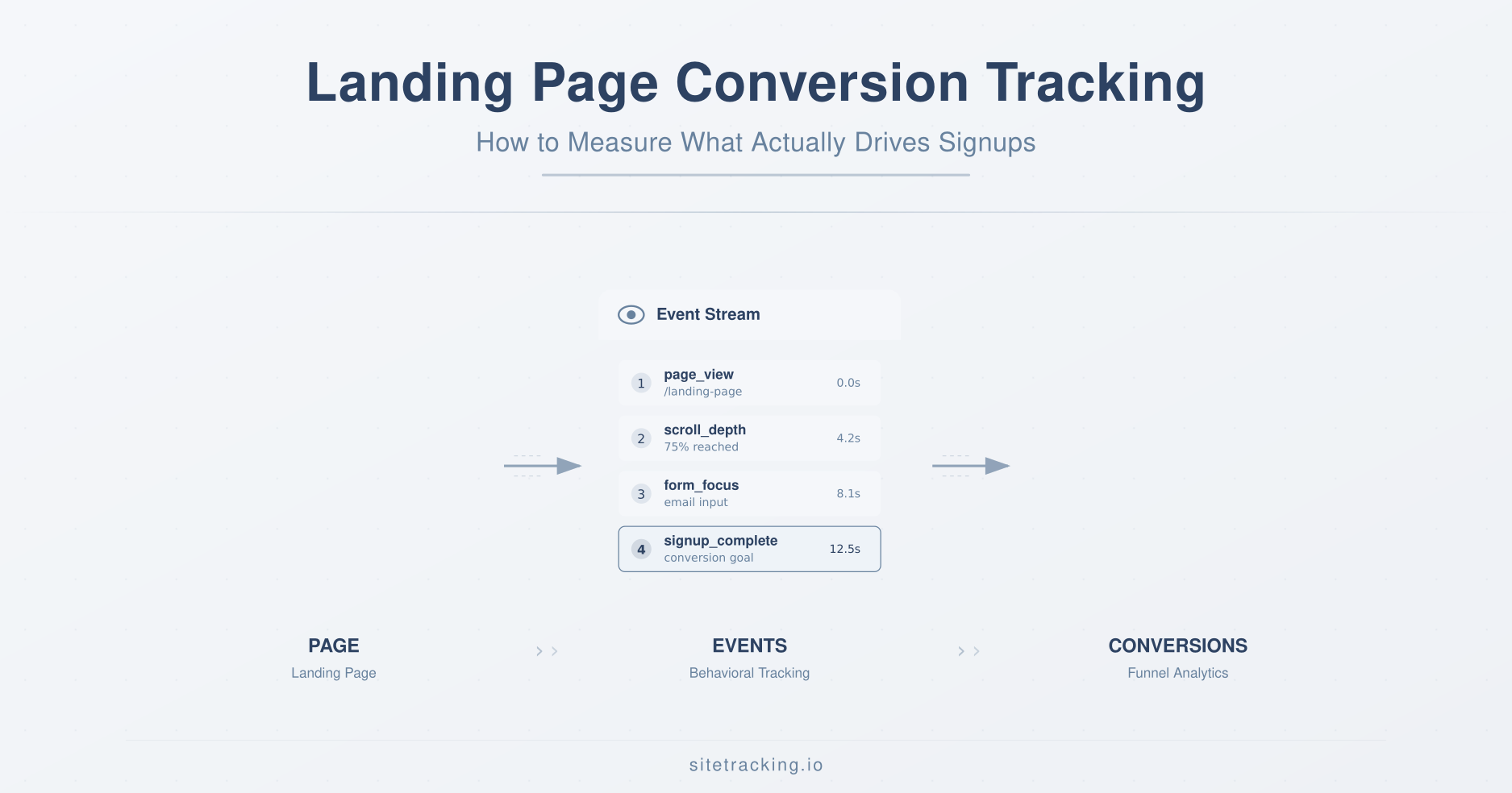
Effective landing page conversion tracking goes deeper. It means understanding the full journey on the page: who scrolls past the fold, who clicks your CTA but abandons the form, who watches your video, and who bounces in three seconds.
In other words, one number isn’t enough. You need a small set of signals that together tell you the real story.
What to track: the essential landing page metrics
Before touching any tool, decide what you actually need to measure. Here’s the framework I use for every landing page audit.
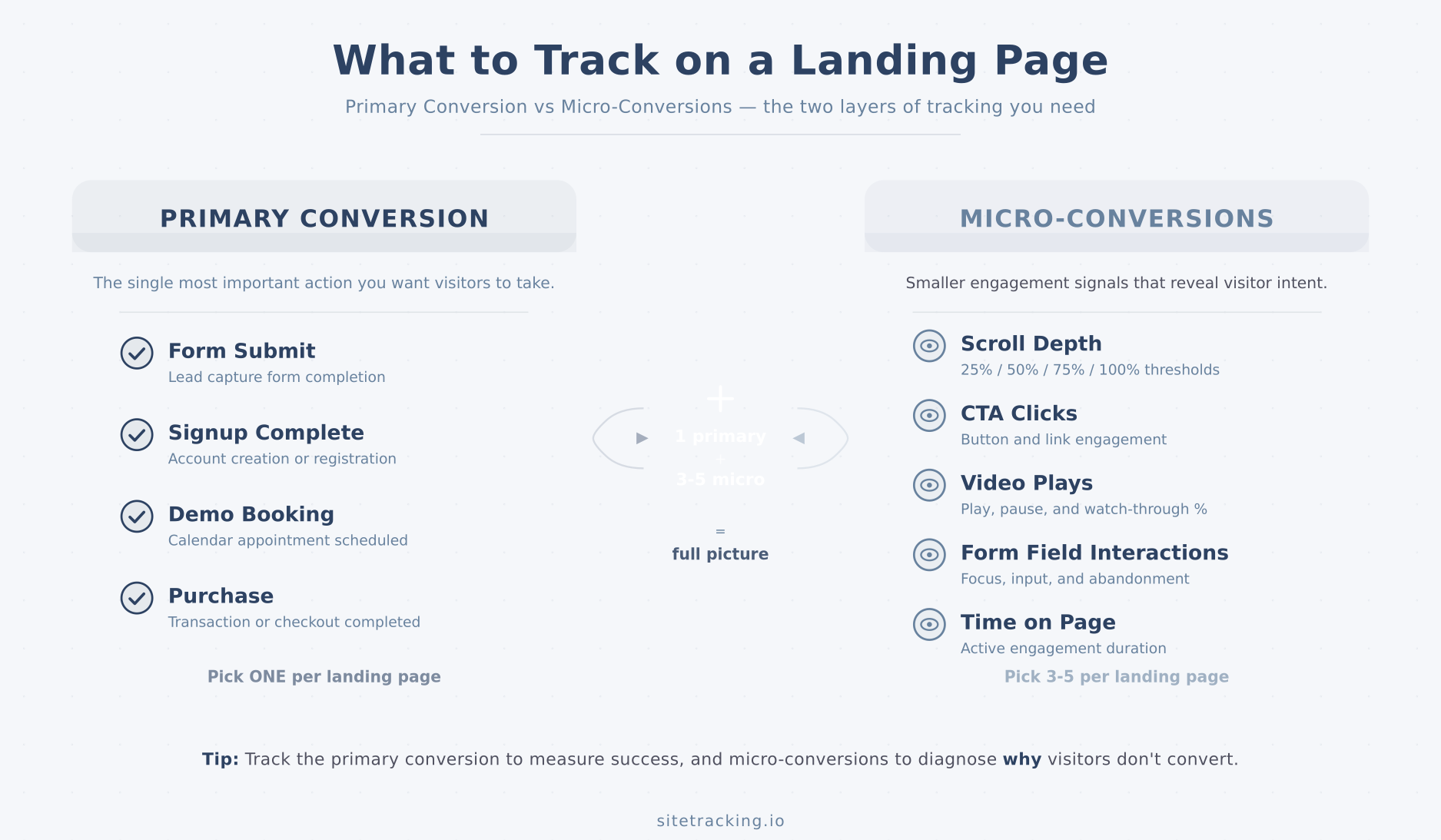
Primary conversion
This is your main goal — the action that defines success. For example:
- Form submission (lead gen)
- Signup completion (SaaS)
- Purchase or add-to-cart (e-commerce)
- Demo booking (B2B)
You should have exactly one primary conversion per landing page. If you’re tracking two, your page is trying to do too much.
Supporting micro-conversions
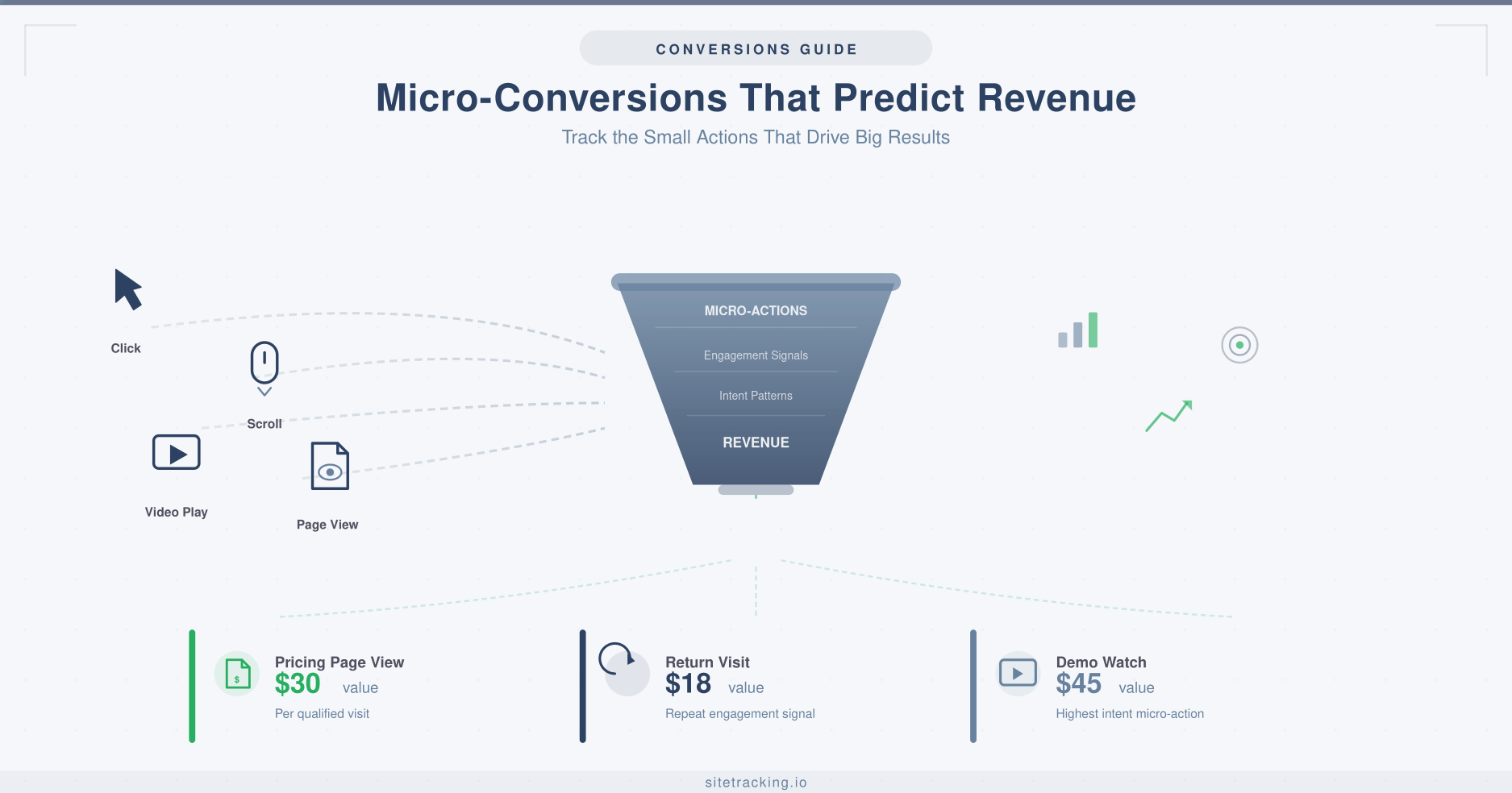
These are the smaller actions that indicate engagement and buying intent. They help you diagnose where things break. Specifically:
- Scroll depth — Did visitors even see your offer? Track 25%, 50%, 75%, and 90% thresholds.
- CTA clicks — How many people clicked your main button? If this is high but conversions are low, your form is the problem.
- Video plays — If you have an explainer video, track play, 50% watched, and completion.
- Form field interactions — Which fields do people start filling out, and where do they drop off?
- Time on page — A quick bounce versus three minutes of reading tells very different stories.
Together, these micro-conversions create a picture of user engagement that a single conversion rate never could. For a deeper dive on this concept, check out our guide on what counts as a conversion event.

Landing page conversion tracking setup: step by step
Now let’s get practical. I’ll show you how to set this up using Google Analytics 4 and Google Tag Manager, since that’s what most teams have access to. The same concepts apply if you use Matomo, Amplitude, or another platform.
Step 1: Define your conversion event
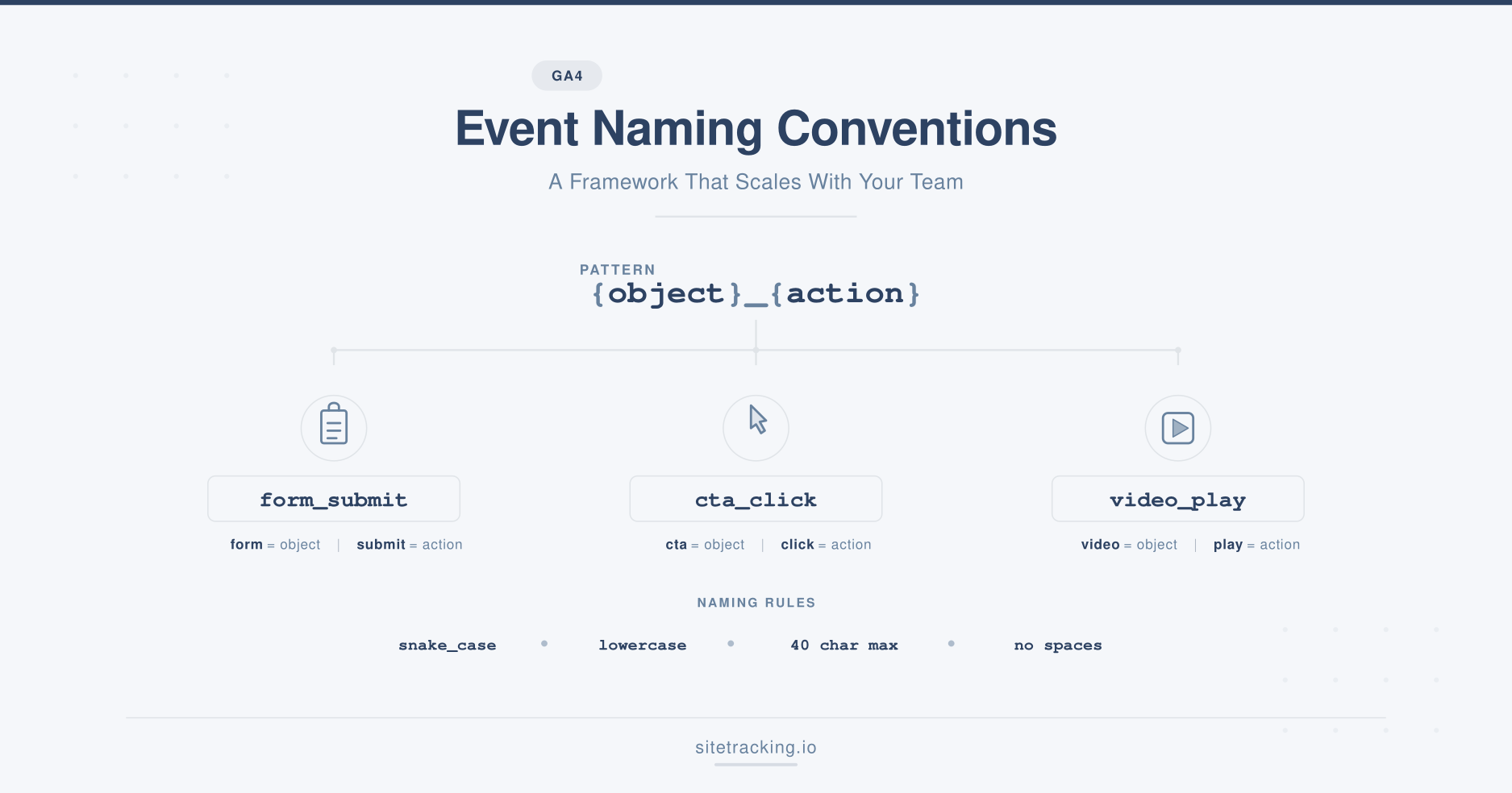
First, name your primary conversion event. Use a clear, consistent naming convention:
form_submit_landing_demo— demo request form submittedsignup_complete— account creation finishedlead_captured— email collected via landing page
Avoid vague names like conversion or goal1. Six months from now, nobody will remember what those mean. Additionally, include parameters that give context:
page_name: which landing page triggered itform_id: which form (if you have multiple)traffic_source: where the visitor came from
Step 2: Set up the trigger in GTM
Open Google Tag Manager and create a trigger for your conversion. The most common approach:
For form submissions: Use a Form Submission trigger. Enable “Wait for Tags” and “Check Validation” to avoid counting abandoned forms. Then filter by your landing page URL or form ID.
For button clicks: Use a Click trigger filtered to your CTA’s CSS class or ID. For instance, filter Click Classes contains cta-signup.
For thank-you page loads: Use a Page View trigger with a condition like Page Path equals /thank-you/. This is the simplest method, but it misses AJAX-based forms that don’t redirect.
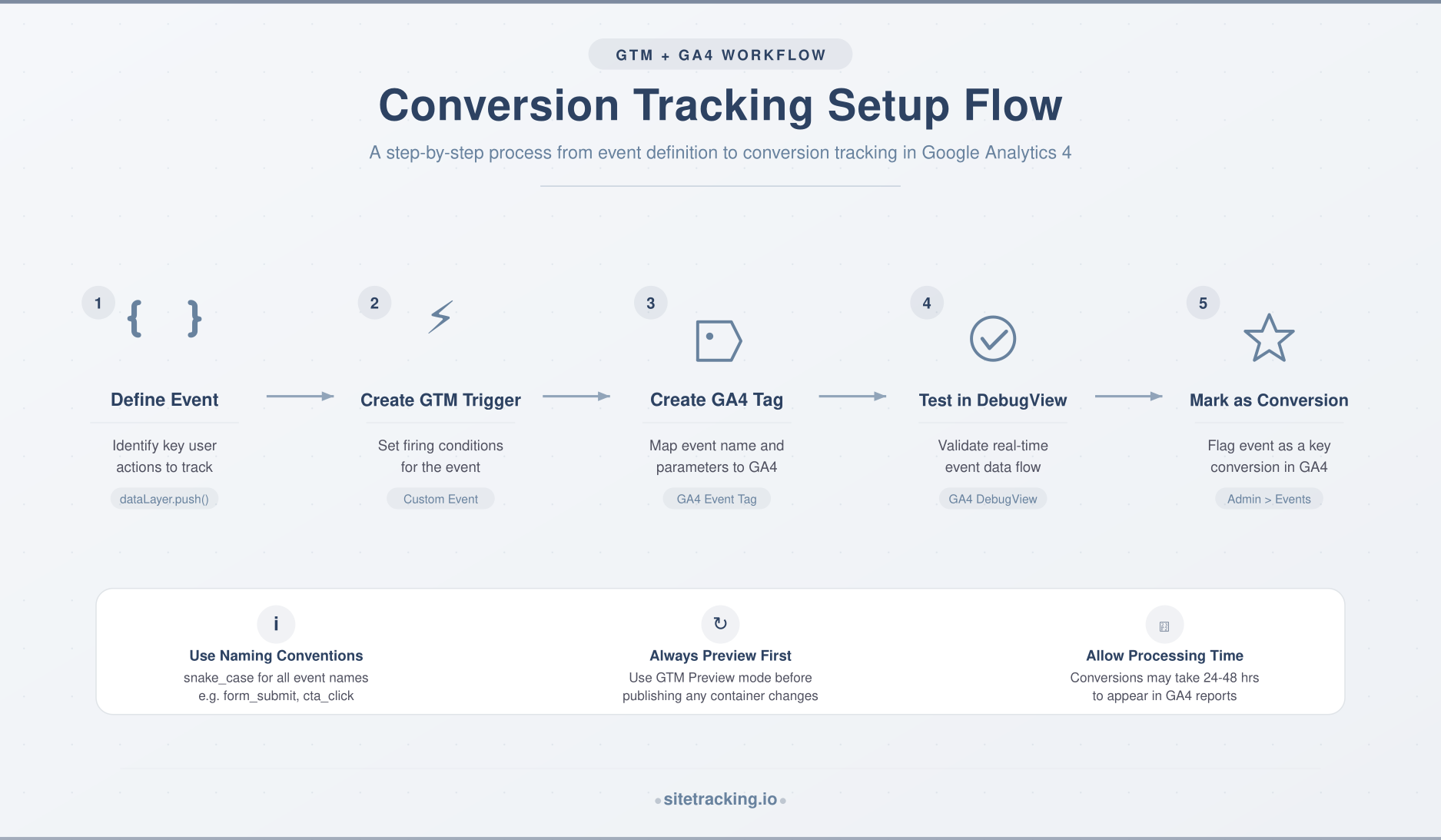
Step 3: Create the GA4 tag
In GTM, create a new Google Analytics: GA4 Event tag. Set the event name to your conversion event (e.g., form_submit_landing_demo). Add your parameters as event parameters.
Then link it to the trigger you just created. Test it in GTM’s Preview mode — submit the form yourself and verify the event fires in the GA4 DebugView.
Step 4: Mark it as a conversion in GA4
This step trips people up. Sending an event to GA4 doesn’t automatically make it a conversion. You need to explicitly mark it.
Go to GA4 → Admin → Events, find your event, and toggle “Mark as conversion.” Alternatively, go to Admin → Conversions and add it manually. As a result, GA4 will now report this event in conversion reports and attribute it to traffic sources.
Step 5: Add micro-conversion tracking
Now layer in your supporting events. In GTM, create tags for:
- Scroll tracking: Use GTM’s built-in Scroll Depth trigger. Set thresholds at 25, 50, 75, 90 percent. Fire a GA4 event like
scroll_depthwith apercentparameter. - CTA visibility: Use an Element Visibility trigger on your main CTA button. This tells you whether people actually saw it, not just whether they reached that scroll depth.
- Video engagement: Use GTM’s YouTube Video trigger (if embedded). Track Start, Progress (50%), and Complete.
- Outbound clicks: Track clicks on external links to catch people leaving before converting.
You don’t need to mark these as conversions in GA4. They’re diagnostic events — useful for analysis, not for campaign optimization.
Common landing page tracking mistakes to avoid
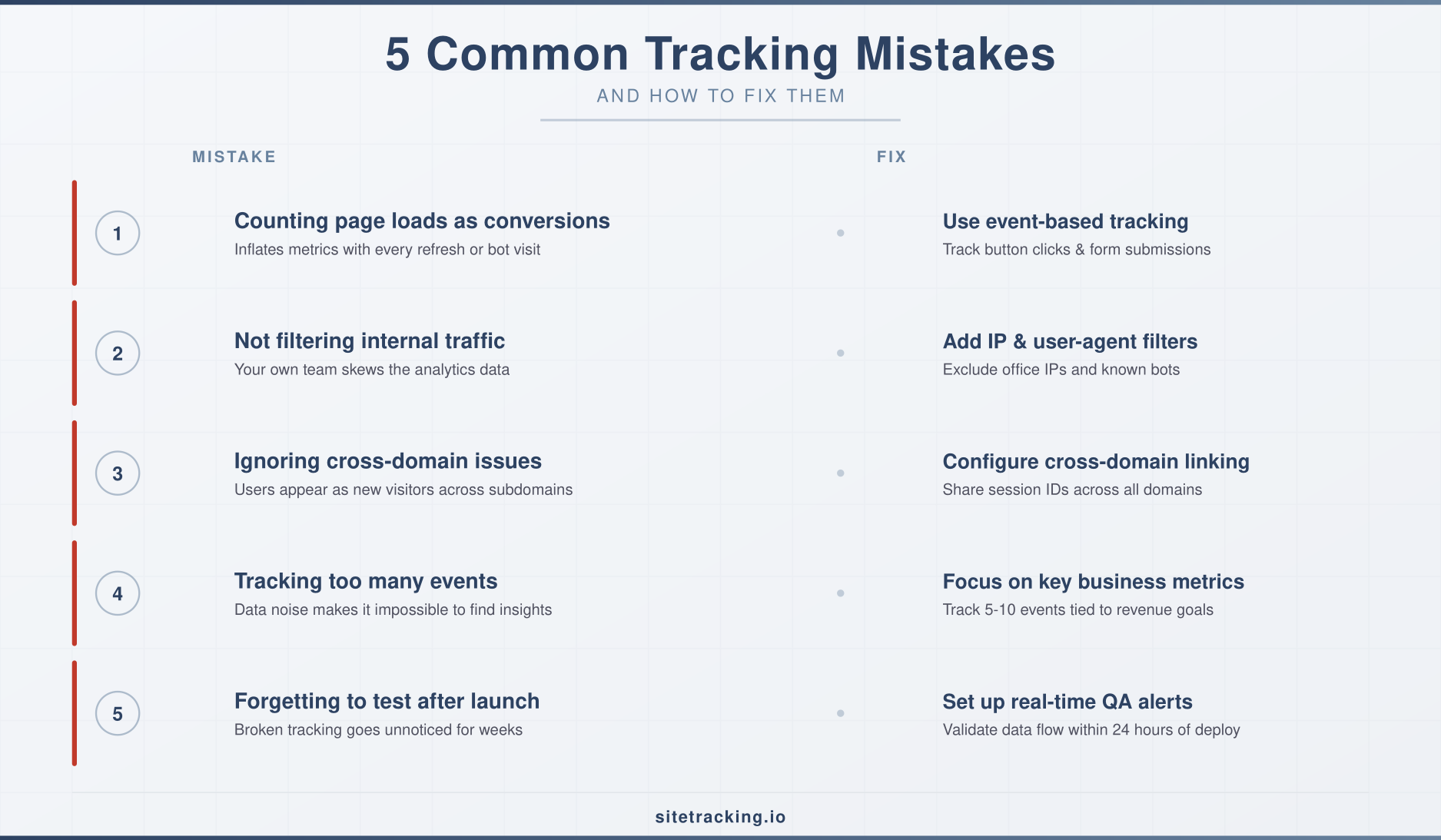
I’ve audited dozens of tracking setups. Here are the mistakes I see most often:
- Counting page loads as conversions. If your thank-you page is indexed by Google, bots and direct visits inflate your numbers. Always add a referrer condition or use event-based tracking instead.
- Not filtering internal traffic. Your own team visits the landing page constantly. Without a filter, your conversion rate looks lower than it really is. Use GA4’s internal traffic filter or a GTM variable for this.
- Ignoring cross-domain issues. If your form redirects to a different domain (like a payment processor), you lose the session. Set up cross-domain tracking in GA4 to keep the trail intact.
- Tracking too many events. More data isn’t always better. If you’re firing 20 events per page load, you’re creating noise. Stick to 5-8 meaningful signals.
- Forgetting to test after launch. Tags break silently. Test your conversion tracking every time you change the page layout, CMS, or form plugin. Consequently, schedule a monthly audit to catch issues early.
How to analyze your landing page conversion data
Collecting events is only half the job. The other half is knowing what to do with them. Here’s a practical framework for reading your data.
The conversion funnel view
Build a simple funnel in GA4 Explorations:
- Page view (everyone who landed)
- Scroll 50% (engaged enough to read)
- CTA click (showed intent)
- Form submit (converted)
Each step-to-step drop tells you something specific. For example, if 80% of visitors scroll past 50% but only 5% click the CTA, your offer or button isn’t compelling enough. On the other hand, if CTA clicks are strong but form submissions are low, simplify the form.
Segment by traffic source
Not all traffic converts equally. Break your conversion data by source:
- Paid search visitors often have the highest intent — they searched for exactly what you offer.
- Social media traffic tends to browse more casually. A lower conversion rate here doesn’t necessarily mean the page is broken.
- Email traffic usually converts well because they already know you. If it doesn’t, the landing page messaging may not match the email promise.
This segmentation helps you avoid the trap of optimizing a page based on blended averages. In fact, your page might work perfectly for one segment and terribly for another.
Quick self-audit checklist for landing page tracking
Use this checklist to verify your setup is solid before going live:
- Primary conversion event is defined with a clear, descriptive name
- Event fires correctly in GA4 DebugView after a real form submission
- Event is marked as a conversion in GA4 Admin
- Event parameters include page name and form ID
- Scroll depth tracking is active (25%, 50%, 75%, 90%)
- CTA click tracking works (test in Preview mode)
- Internal traffic is filtered out
- Cross-domain tracking configured (if forms redirect externally)
- Thank-you page is noindexed or event-based tracking is used instead
- All tags tested in GTM Preview — no console errors
Frequently Asked Questions
Do I need Google Tag Manager for landing page conversion tracking?
Not strictly. You can send events directly via the GA4 gtag.js snippet or use a server-side approach. However, GTM makes it significantly easier to manage, test, and update tags without touching your page code. For most teams, it’s the practical choice.
How many conversion events should I track per landing page?
One primary conversion plus 3-5 micro-conversions is the sweet spot. That gives you enough data to diagnose problems without overwhelming your reports. More importantly, having a single primary conversion keeps your optimization focused.
Why is my conversion rate different in GA4 versus my form tool?
This happens often. Common causes include: GA4 counting unique users while your form tool counts submissions, bot traffic inflating page views in GA4, or ad blockers preventing GA4 from loading. As a result, discrepancies of 10-20% are normal. Use GA4 for trend analysis and your form tool for absolute counts.
Key takeaways
- Track one primary conversion per landing page — and name it clearly.
- Add 3-5 micro-conversions (scroll depth, CTA clicks, video plays) to understand the full picture.
- Use GTM + GA4 for a practical, maintainable setup that doesn’t require constant developer help.
- Build a funnel view in GA4 Explorations to see exactly where visitors drop off.
- Segment by traffic source — blended conversion rates hide the real story.
- Audit monthly — tags break silently, and broken tracking is worse than no tracking.
Landing page conversion tracking isn’t complicated. The hard part is being disciplined about what you track and how you use it. Start with the basics in this guide, verify everything works in DebugView, and then let the data guide your next test.